`
Guide to assigning a Candidate from a Job in ATZ CRM
To assign a candidate to a job in ATZ CRM, you would typically follow these steps, though the exact steps may vary slightly depending on the specific interface or features of your version. Here’s a general guide based on CRM systems and the ATZ CRM platform:
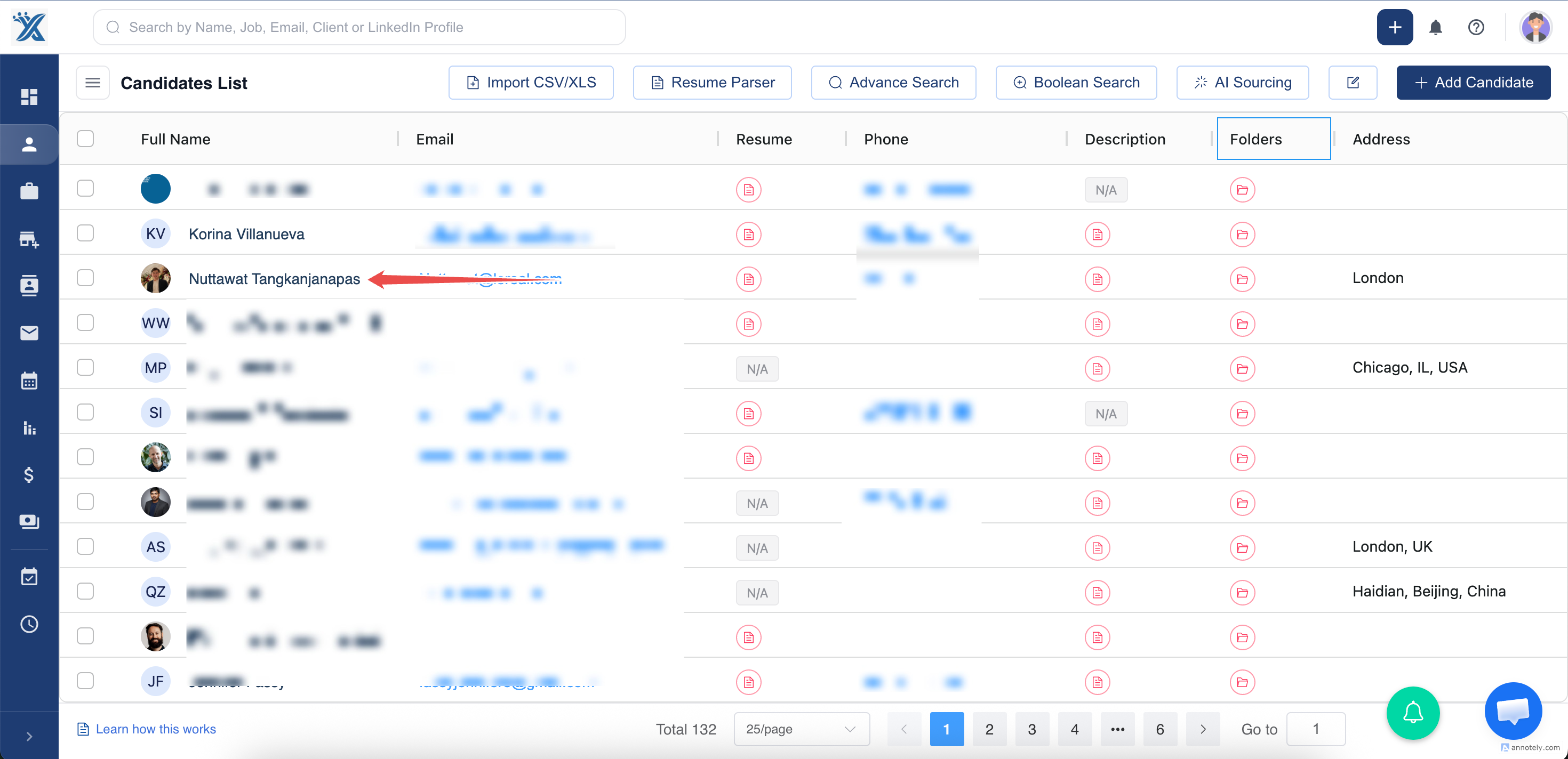
Navigate to the Candidate section:
Go to the “Candidates” module from the main dashboard.Search for the Candidate Profile:
Use filters (e.g., name, email, phone, etc) to locate the candidate.Open Candidate Details:
Click on the candidate's profile to view their information.
4. Click on Add To Job button, under the Jobs tab for assigning the candidate to a Job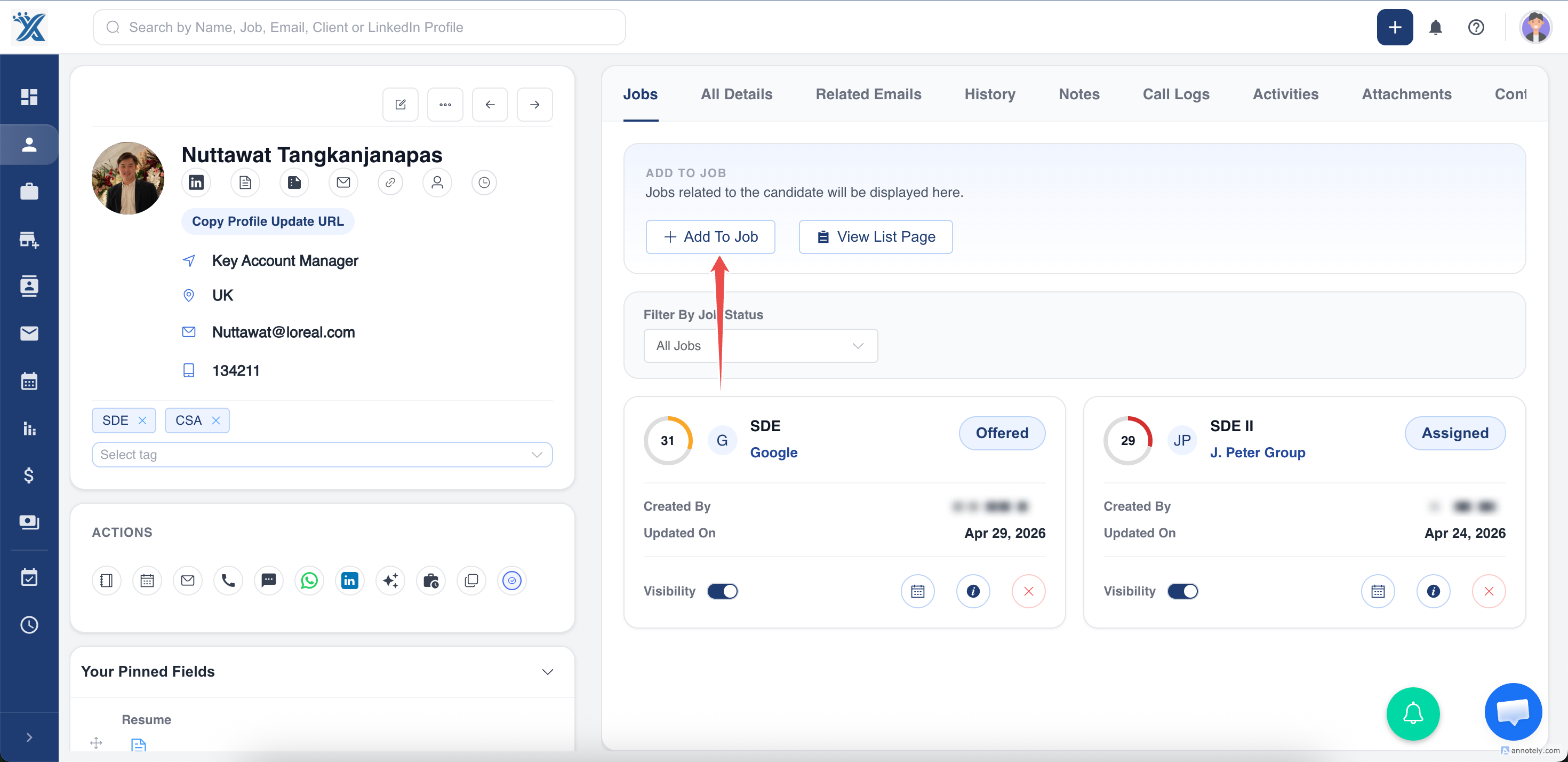
5. Search, Filter and Select the Jobs. Click on Add Jobs to add candidate to the selected Jobs.
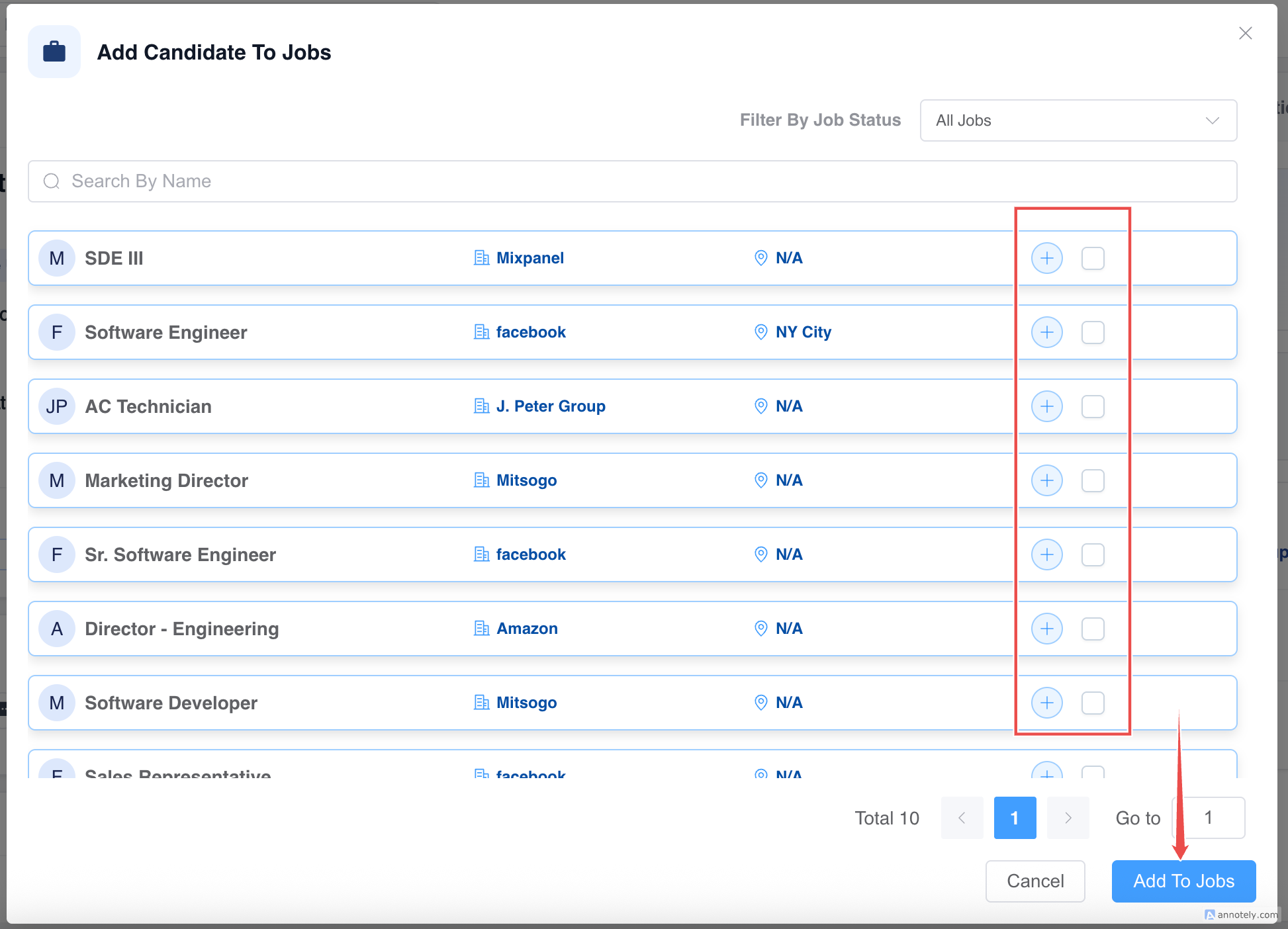
Done, you have assigned a candidate to the job in ATZ CRM successfully!
Unassigning a candidate from a job in ATZ CRM is a simple process. By following these steps, you can efficiently manage your candidate assignments.
This guide will walk you through the steps to un-assign a candidate in ATZ CRM.
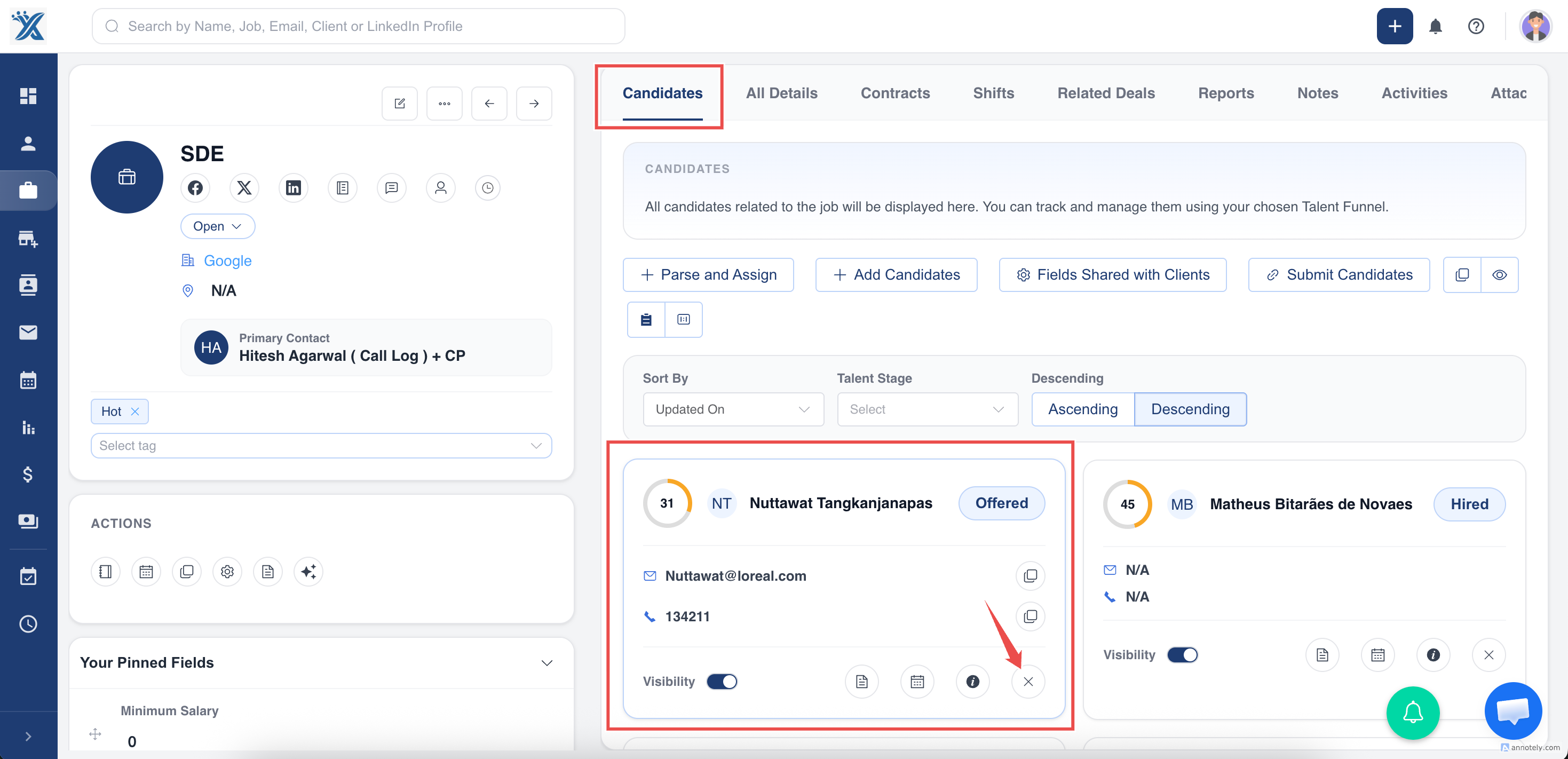
Step 1: Go to the Jobs section.
Step 2: Select the specific Job Role from which you want to unassign the candidate
Step 3: Locate the candidate you wish to unassign.
Step 4: Click on the Unassign(remove) button.
Was this article helpful?
That’s Great!
Thank you for your feedback
Sorry! We couldn't be helpful
Thank you for your feedback
Feedback sent
We appreciate your effort and will try to fix the article