This guide explains how recruiters can use Shifts and Timesheets in ATZ CRM to manage contract placements, track hours, and streamline client approvals.
The workflow follows the way temp agencies already operate — just without paper, spreadsheets, or WhatsApp messages.
1. What This Feature Does
This feature helps recruiters:
Schedule shifts for ongoing roles
Assign (book) candidates to shifts
Allow candidates to submit their own worked hours
Send timesheets to clients for approval or rejection
Use approved timesheets for invoicing and payroll
You can think of it as replacing paper timesheets + manual approvals with a cleaner digital flow.
2. The Workflow at a Glance
Here is the full flow in simple steps:
a. Create a Job
b. Create one or more Shifts under the job.
c. Book candidates into those shifts
d. After work is finished, mark the shift as Completed
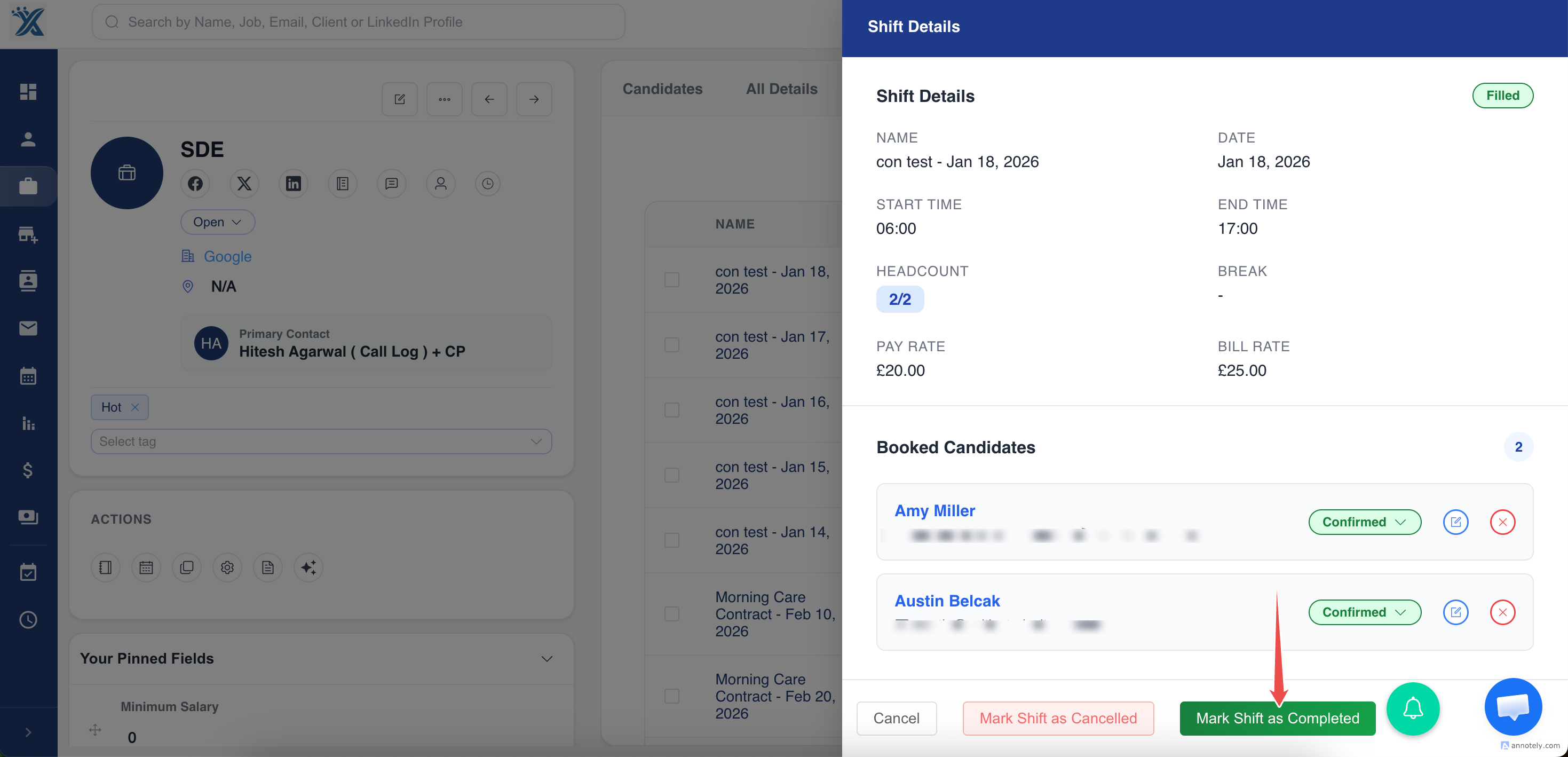
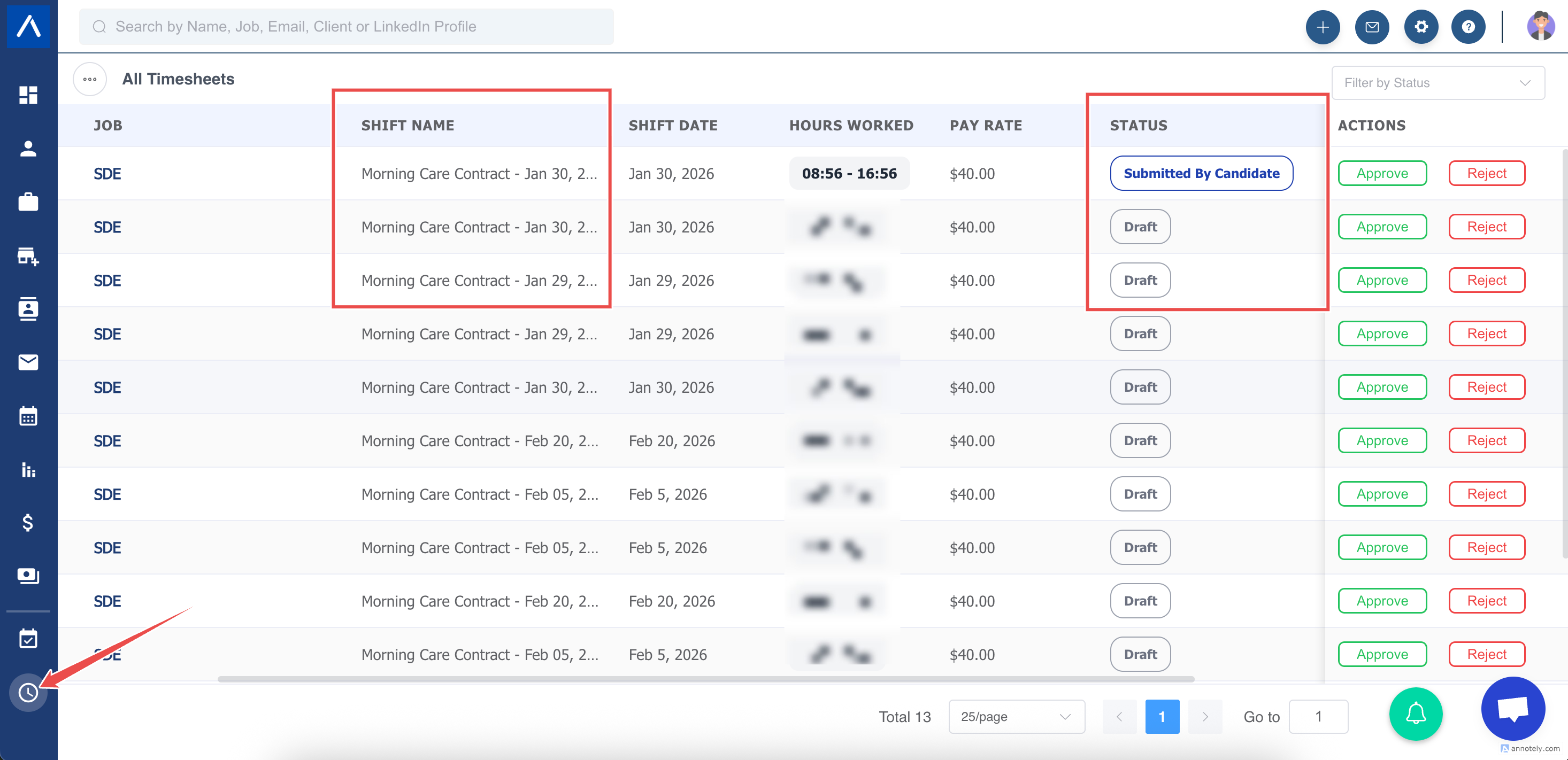
e. ATZ CRM automatically creates a Draft Timesheet
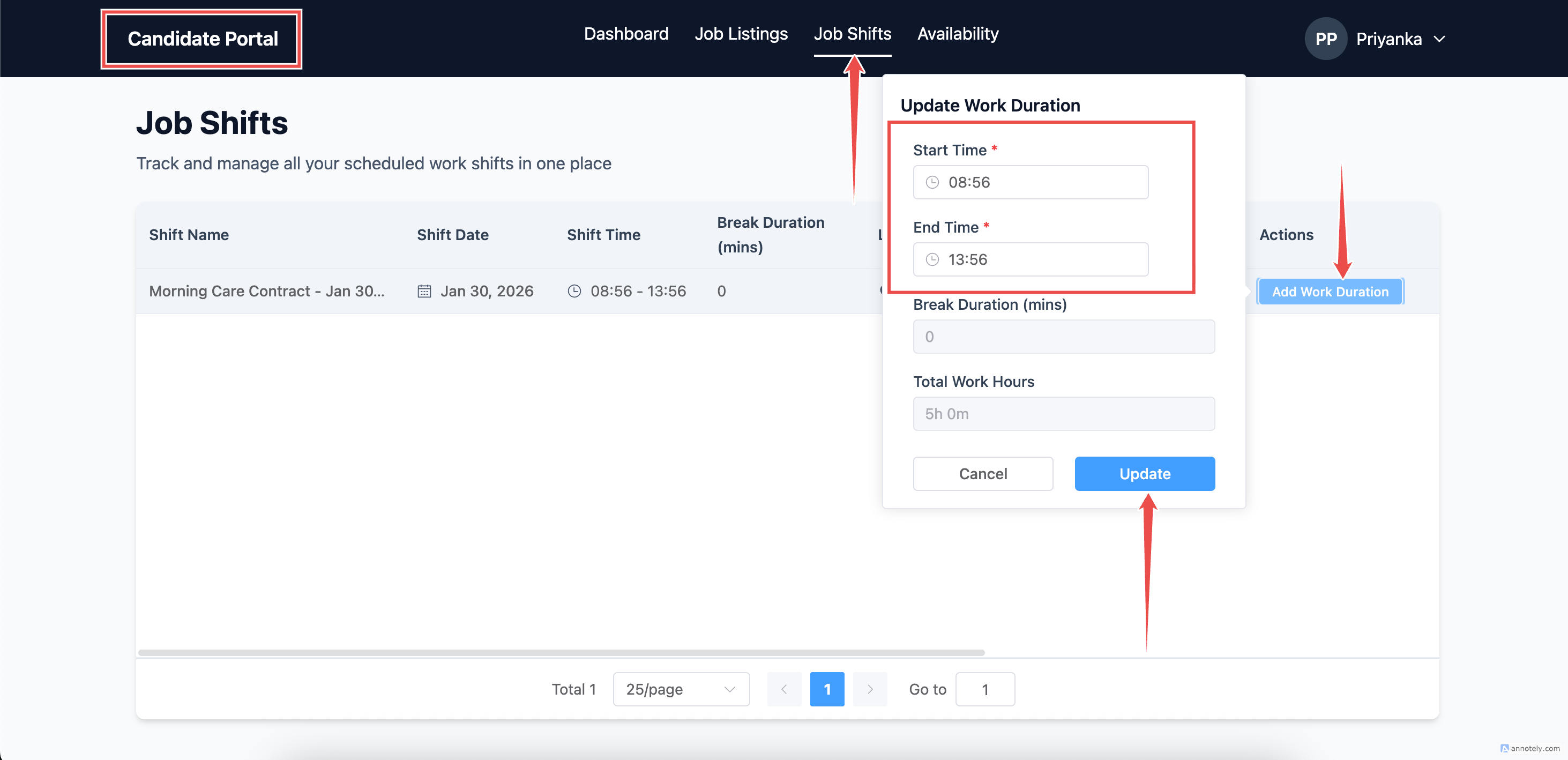
f. The candidate logs in and fills their hours
g. Recruiter reviews
h. The recruiter sends the timesheet details to the client for approval ( In Review )
i. Client approves or rejects (no login required) ( In Review )
j. Once approved, the timesheet is used for invoicing & payroll ( In Review )
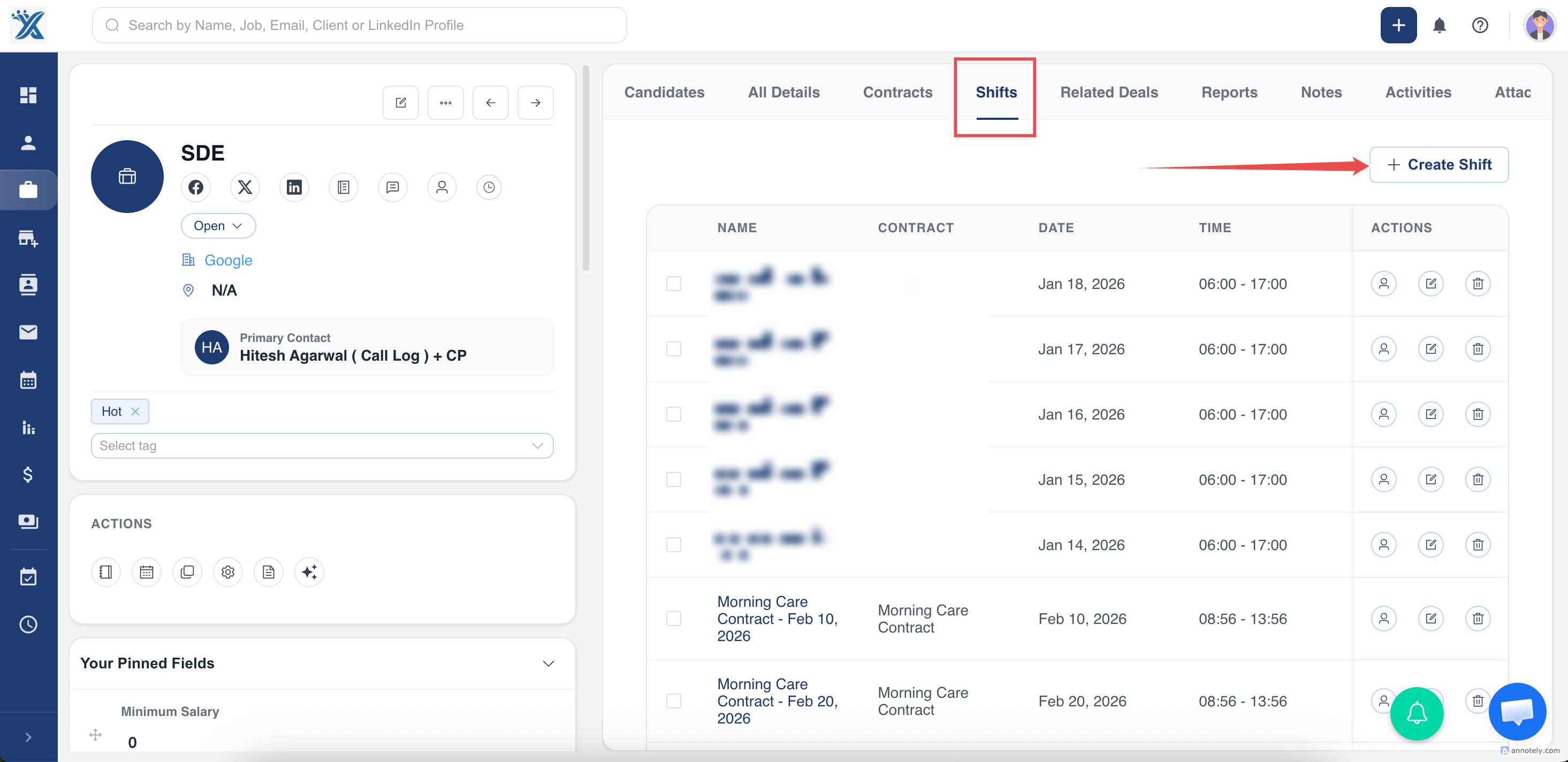
3. Creating a Shift (Planning Who Works)
A Shift represents a specific day and time when one or more candidates need to work.
To create a shift:
a. Open the Job
b. Go to the Shifts tab
c. Click Create Shift
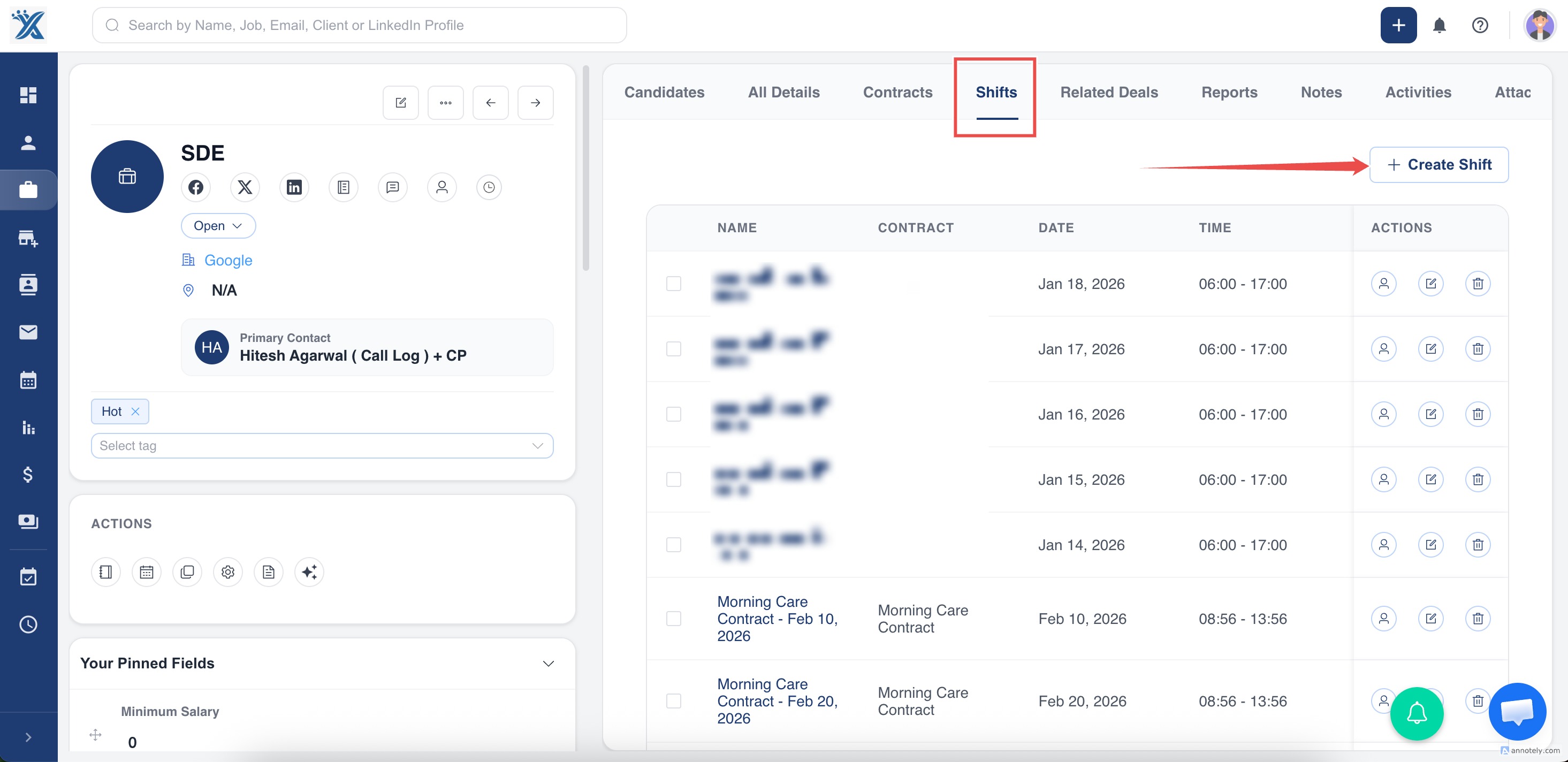
d. Enter:
Date
Start time & End time
Break (if any)
Required headcount
Pay & bill rate (if applicable)
Save the shift.
This creates the planned schedule for that job.
4. Booking Candidates to a Shift
Once a shift is created:
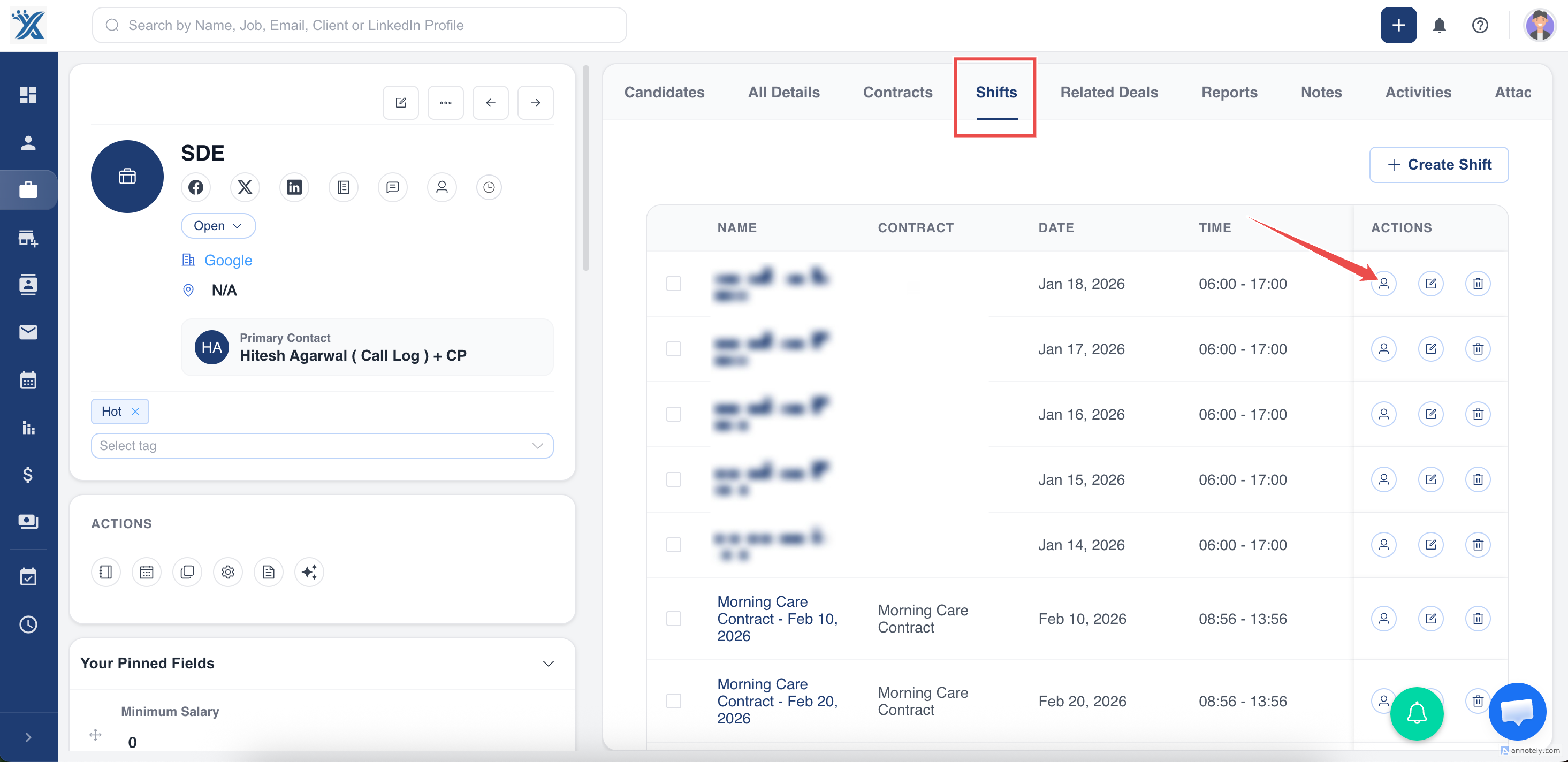
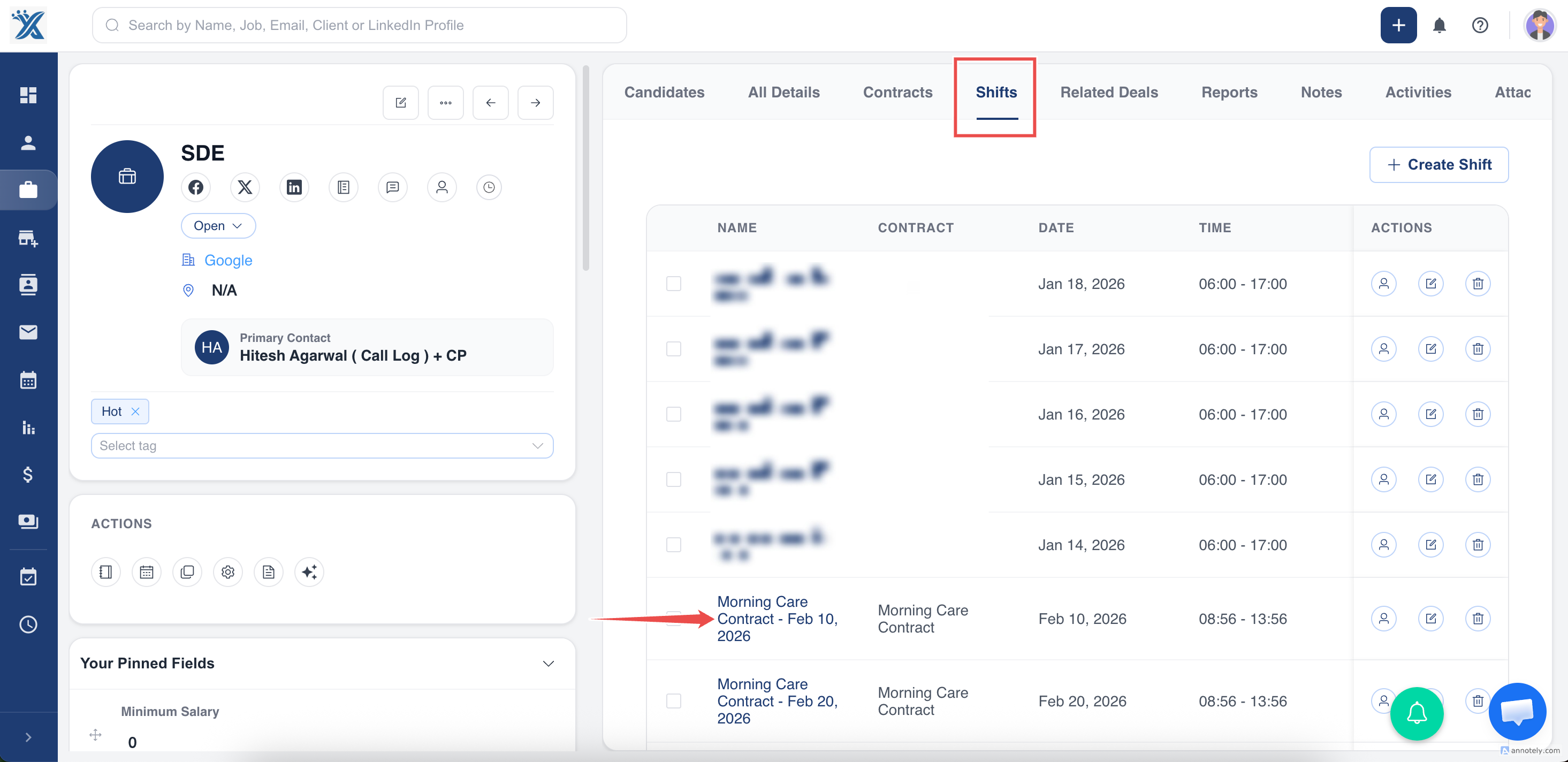
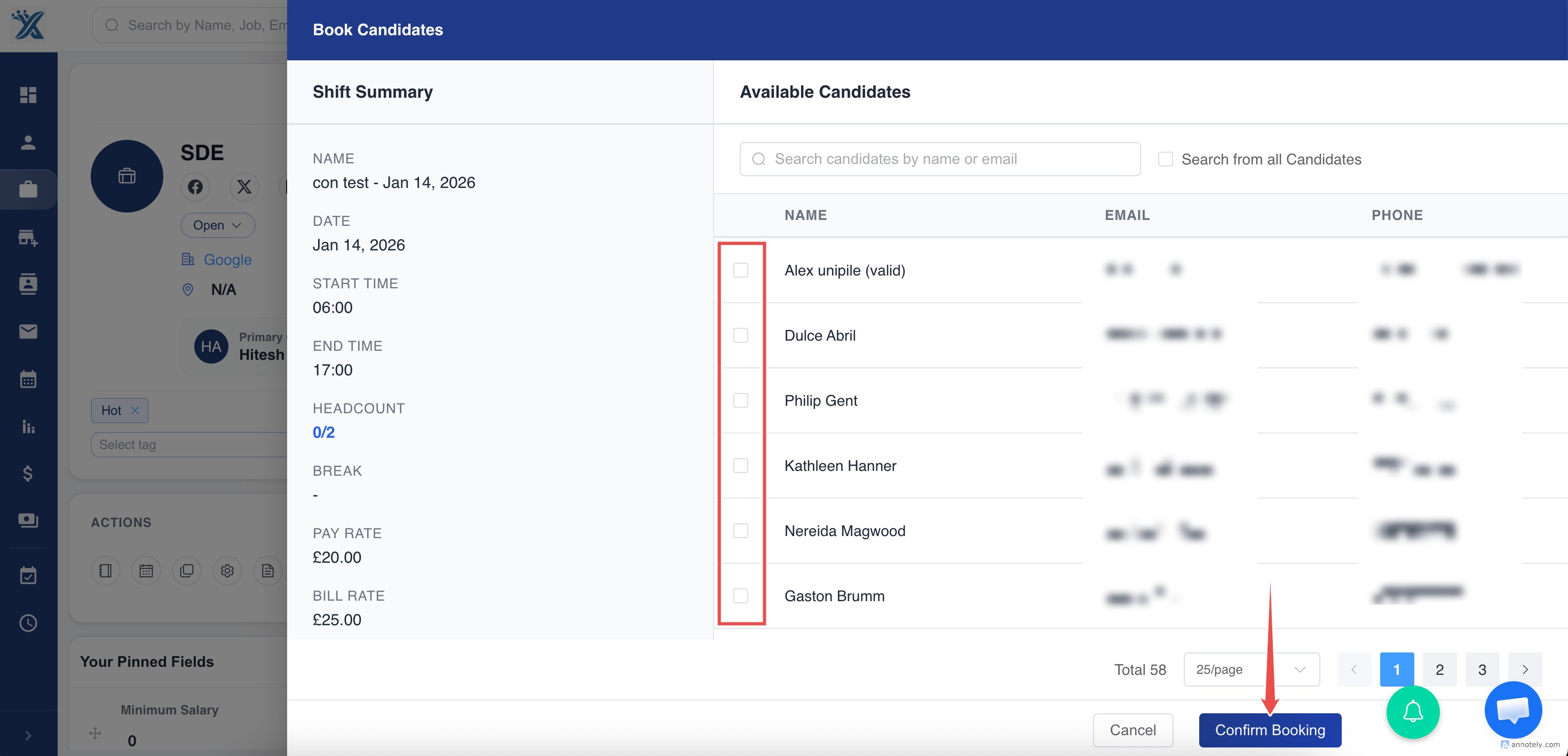
a. Open the "Shifts" Tab in Job Detail Page
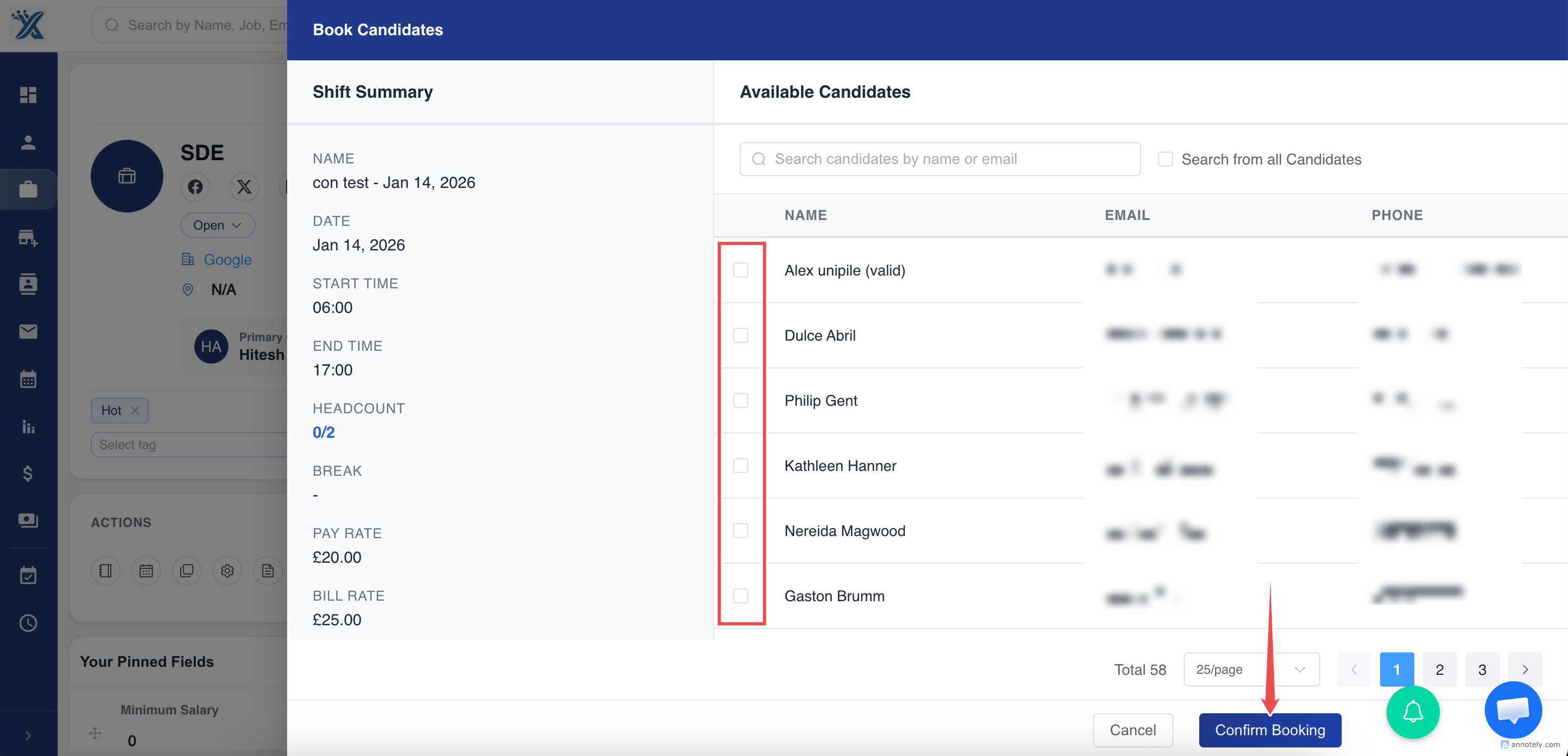
b. Click "Book Candidates" button for a Shift.
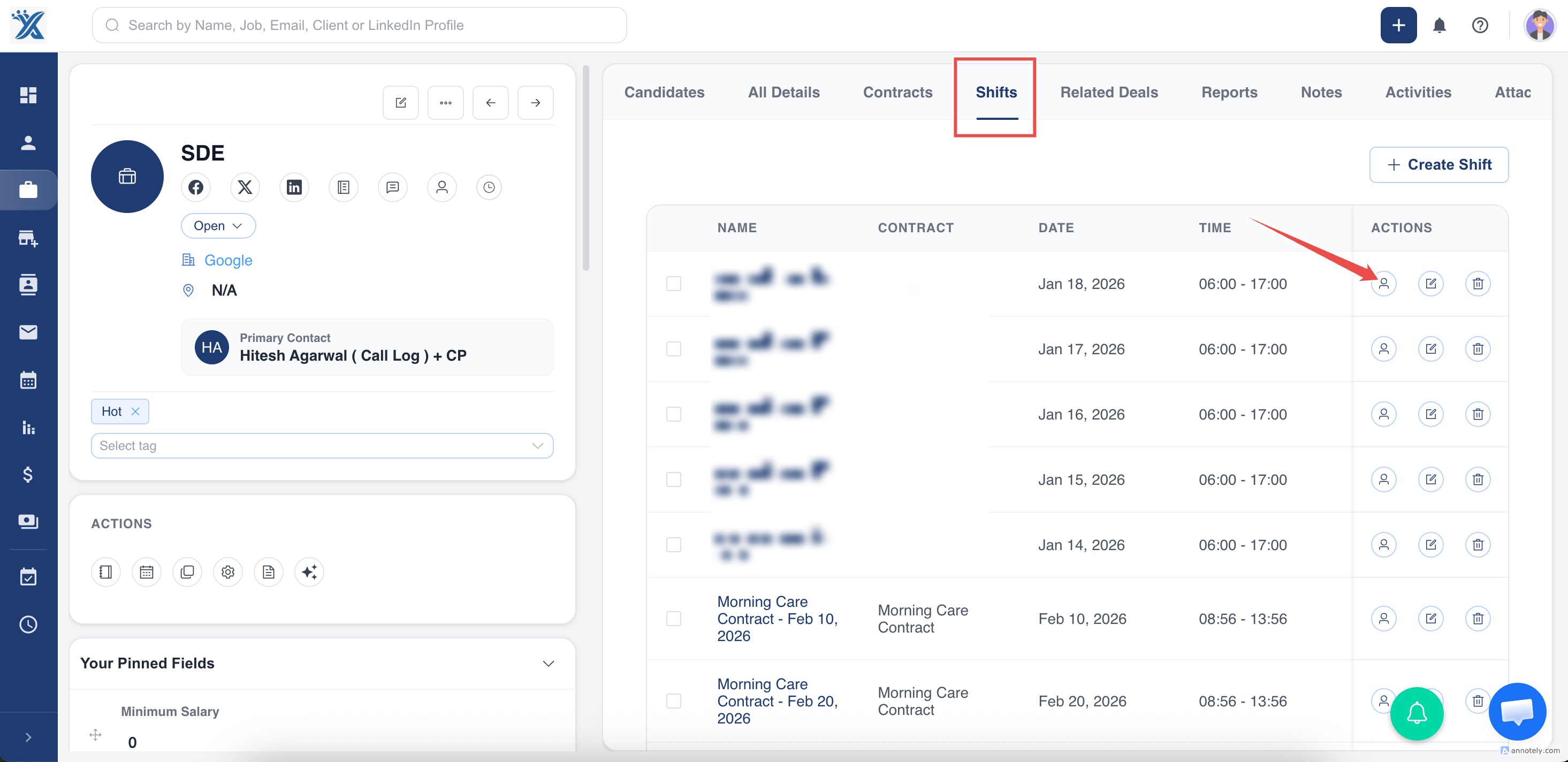
c. Select one or more candidates
d. Confirm booking
Rules that protect your data:
A candidate cannot be double-booked for overlapping shifts
You will be able to view the "Candidate Availability" for that day.
Once required headcount is reached, the shift becomes Filled
Each booked candidate is tracked individually
This replaces manual rosters or Excel schedules.
5. When the Shift is Completed
After the work is finished:
The recruiter marks the shift as Completed
This step is important because:
Candidates should only enter hours after work is done
It ensures records stay accurate
Once completed, ATZ CRM automatically creates a Draft Timesheet for each candidate.
6. Candidate Submits Their Timesheet
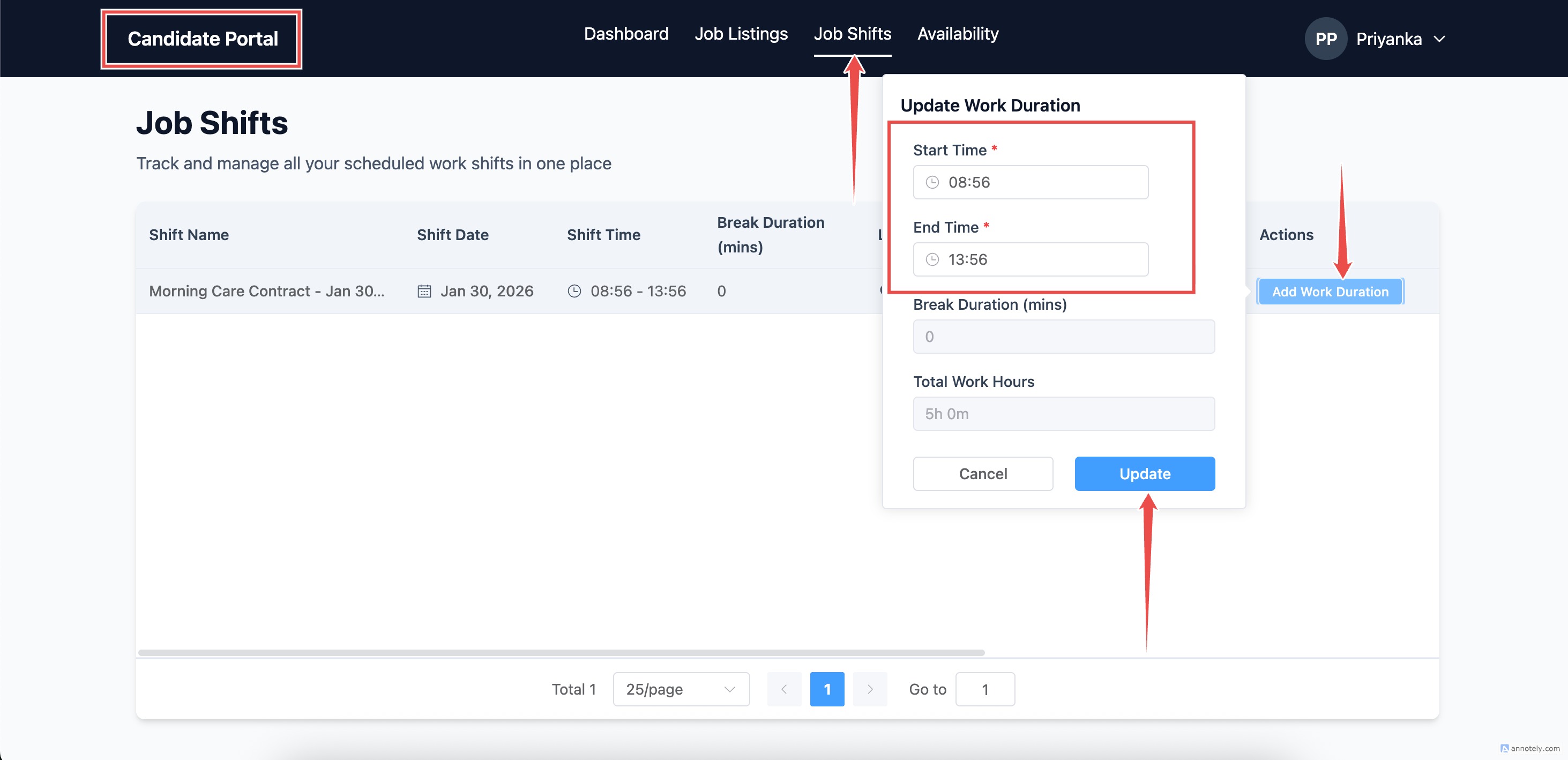
Candidates submit their own hours via the Candidate Portal.
They enter:
Actual start time
Actual end time
Total hours
Then they click Update.
Controls to maintain accuracy:
They cannot submit before the shift is completed
They can only edit their own timesheet
If rejected, they can resubmit
This replaces handwriting or texting hours to the recruiter.
7. Recruiter Review
Before sending to the client, recruiters may:
Review the hours
Correct mistakes (if needed)
Add notes
This helps prevent client disputes.
8. Sending Timesheet to Client for Approval
Once submitted, Recruiters can send the timesheet to the client via email.
The email includes:
Candidate name
Job / Role
Date
Hours worked
Buttons to Approve or Reject
Clients can approve:
From their phone
Without logging into a portal
Even if different supervisors sign each shift
This matches real-world temp workflows.
10. Approved Timesheets → Invoicing & Payroll
Once approved:
The timesheet becomes locked
Recruiters can:
Export timesheets
Attach them to invoices
Send to back-office/payroll systems (e.g., GEMS)
No re-typing and no duplication.
11. Common Scenarios & How the System Handles Them
Candidate did not attend (No-Show)
Mark as No-Show
No timesheet is generated
Nothing is billed
Candidate left early
Candidate enters actual hours
Client approves reduced time
Client rejects a timesheet
Recruiter reviews the issue
Timesheet returns to Candidate for resubmission
Full audit trail is stored
Multiple candidates in the same shift
Each candidate has their own:
Timesheet
Hours
Approval record
Recurring shifts
Each day still produces an individual shift and timesheet
Easier tracking and dispute resolution
12. Why This Workflow Benefits Recruiters
No more paper or WhatsApp timesheets
Higher accuracy and fewer disputes
Faster approvals
Clear audit history
Works even when clients change signers day-to-day
Designed for real-world temp operations
Final Summary
ATZ CRM helps recruiters manage contract work the way they already do — but digital, cleaner, and faster.
You simply:
Plan the shift → Book candidates → Confirm hours → Get approval → Invoice confidently
Was this article helpful?
That’s Great!
Thank you for your feedback
Sorry! We couldn't be helpful
Thank you for your feedback
Feedback sent
We appreciate your effort and will try to fix the article