Overview
ATZ CRM allows you to communicate with Candidates and Contacts directly through SMS, helping you reach recipients quickly for interview scheduling, job updates, follow-ups, appointment reminders, and other business-related communication.
Before sending SMS messages, ensure that:
- SMS has been enabled for your account.
- Your organization has completed any required SMS registration and compliance requirements.
- The recipient has provided valid SMS consent.
ATZ CRM will only allow SMS messages to be sent to recipients who have consented to receive text communications.
Before You Send an SMS
Before composing a message, verify the following:
SMS Is Enabled
Your account must have SMS functionality activated and configured with a valid SMS provider.
Recipient Has a Mobile Number
The Candidate or Contact record must contain a valid mobile phone number.
SMS Consent Has Been Provided
Recipients must have an active SMS consent status before messages can be sent.
If consent has not been recorded, ATZ CRM will prevent SMS delivery until consent is obtained.
Sending an SMS to a Candidate/Contact Record
To send a text message to a Candidate/Contact:
Step 1
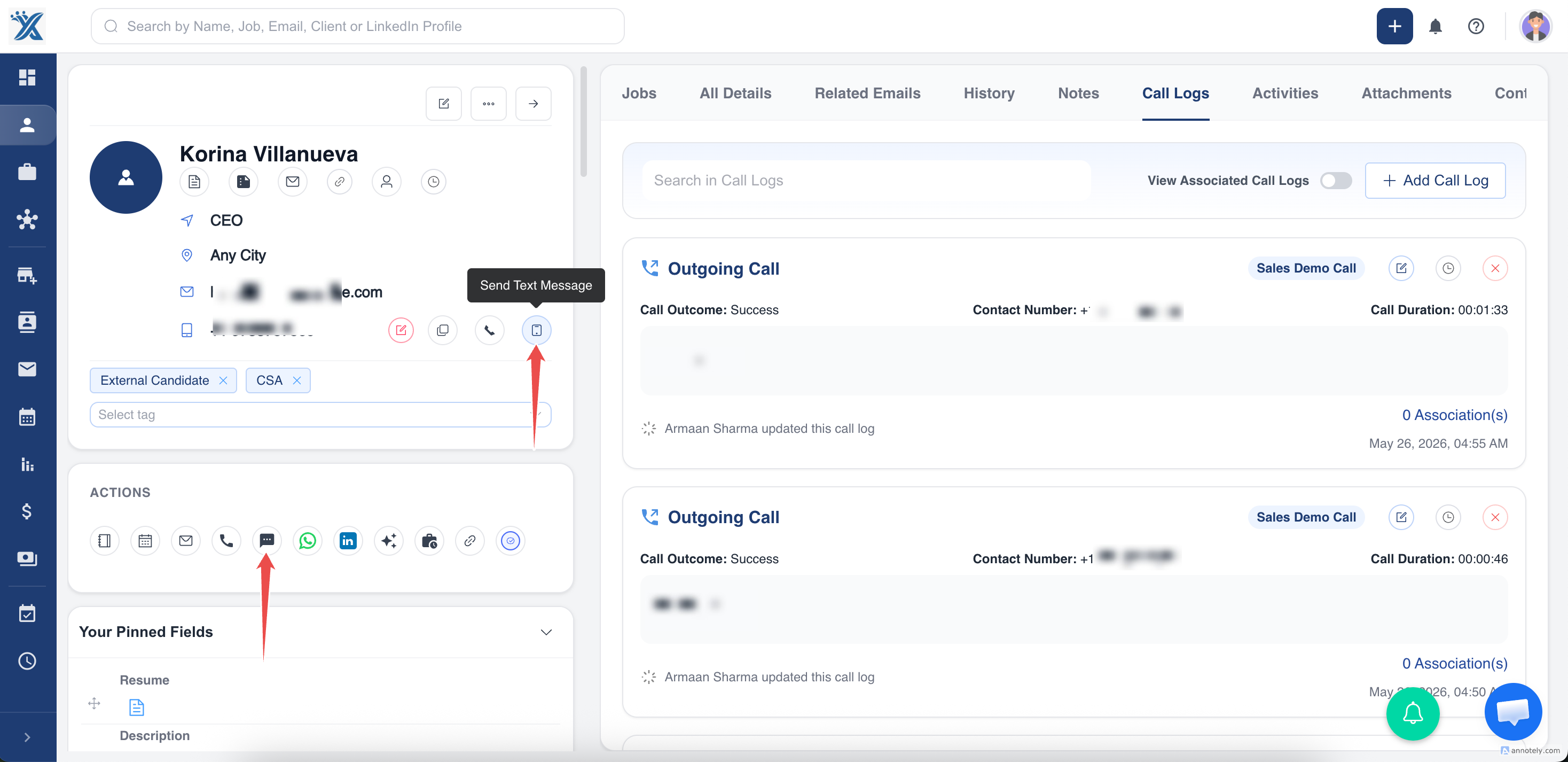
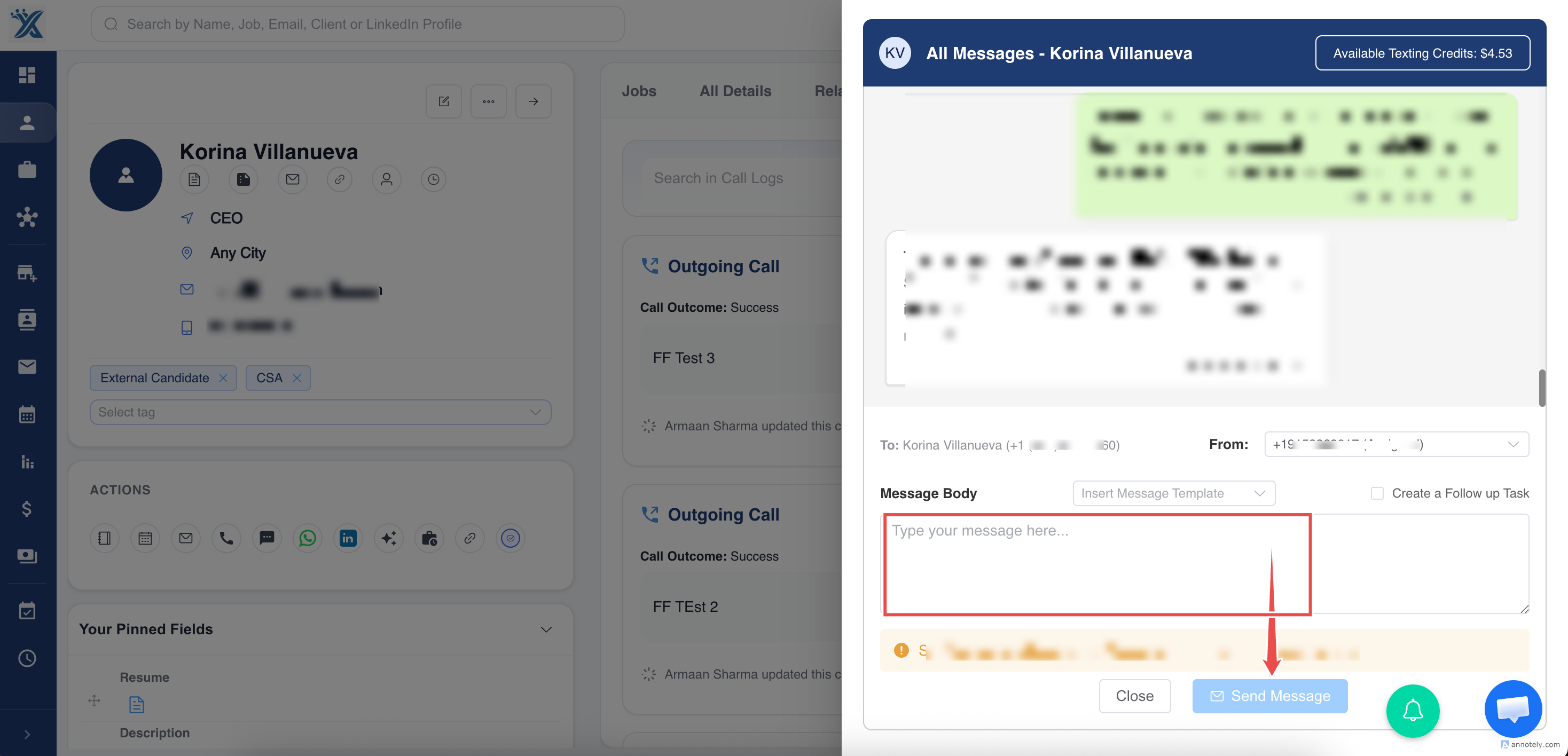
Open the Detail Page and click on the "Send Text Message". All the chat history will be displayed in the window.
Step 2
Compose your message.
You can write a custom message or use an existing Message template if configured by your organization.
Step 3
Review the message and click "Send Message".
The message will be delivered to the Candidate/Contact registered mobile number.
Sending Bulk SMS
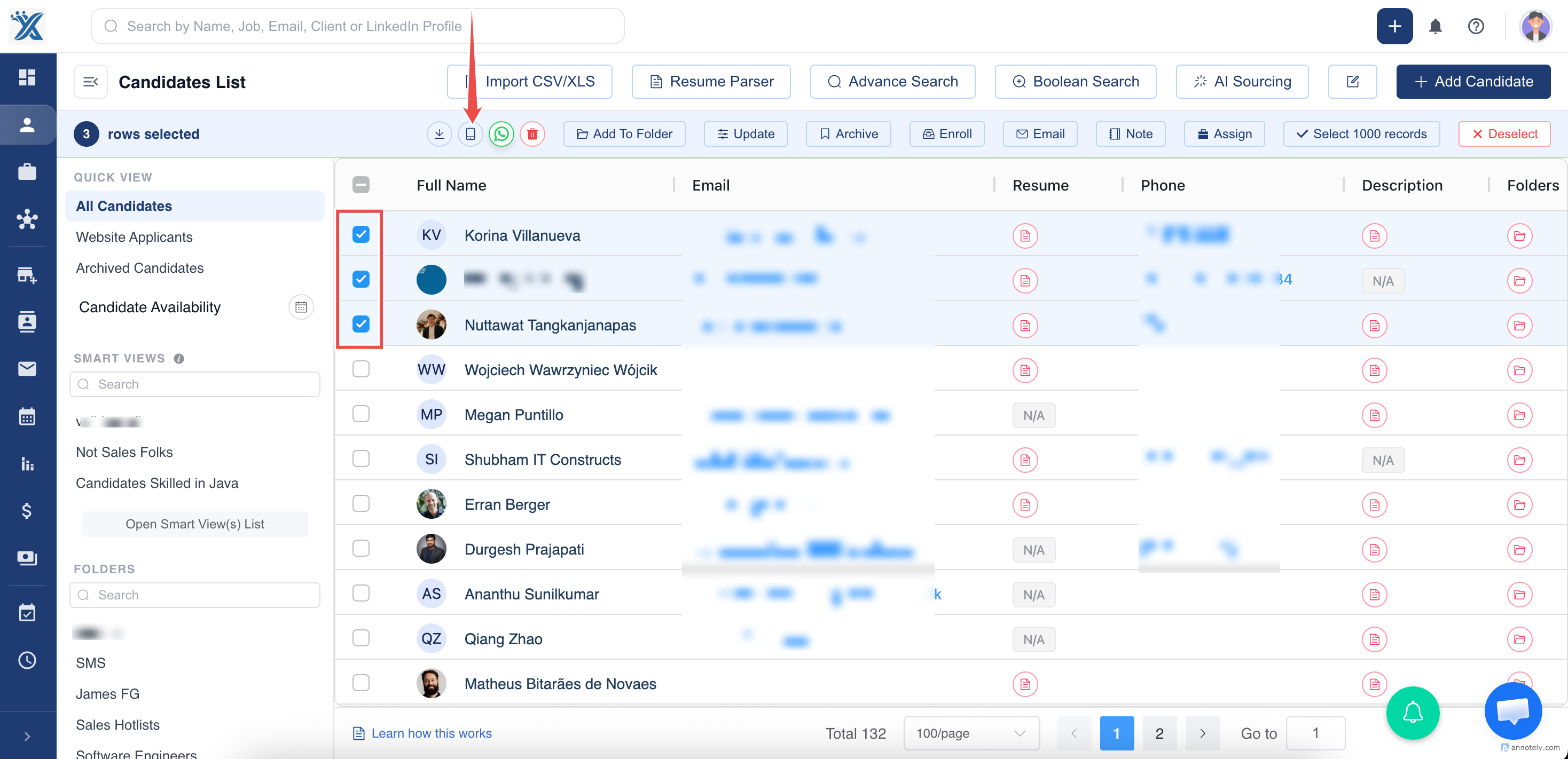
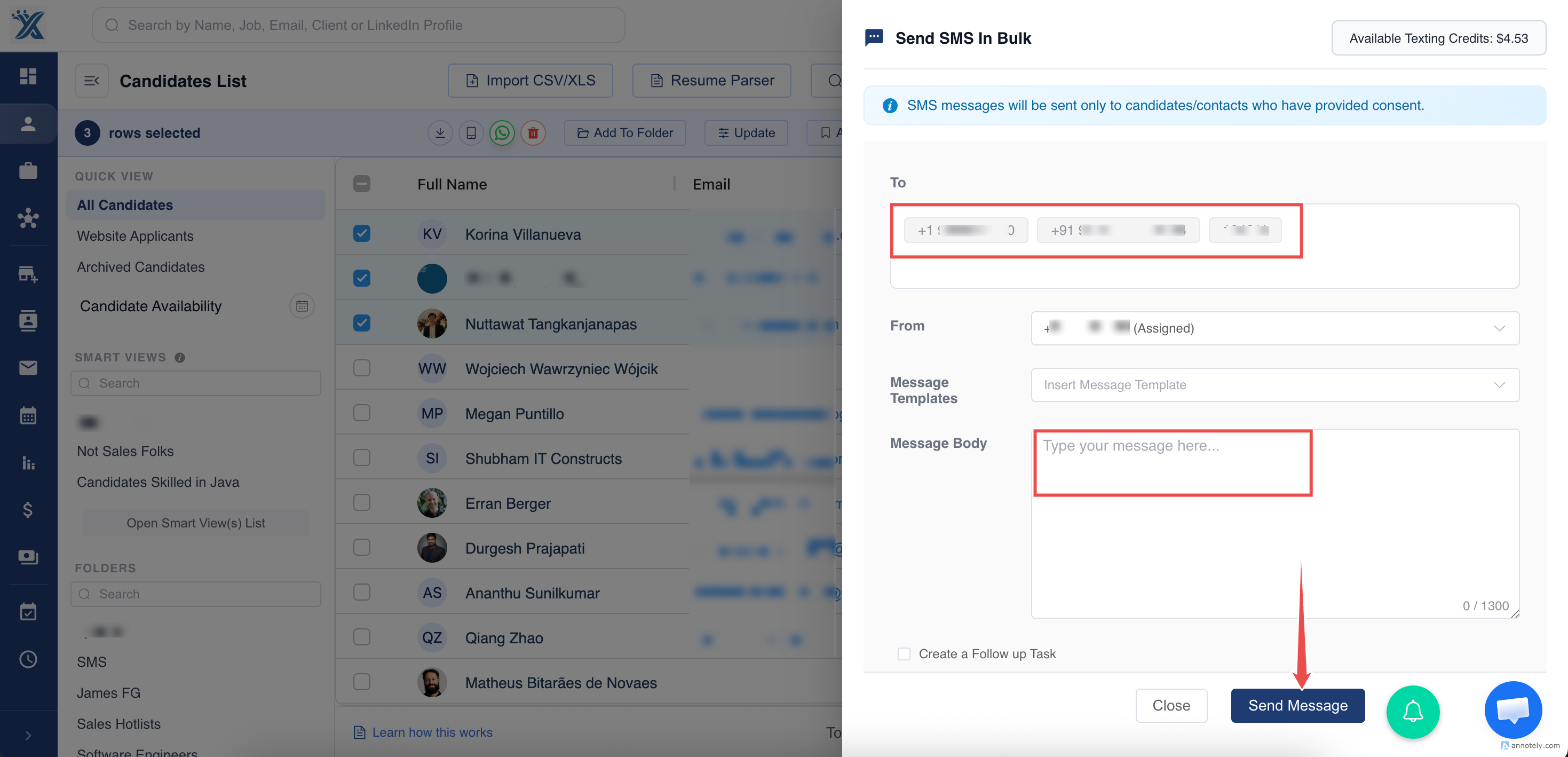
Go to the Candidates/Contacts List Page and select the records. Click on the "Send SMS" option. The window will open where you can type the message or use Message Templates.
Managing Incoming Replies
When a Candidate or Contact replies to an SMS:
- The response is automatically recorded in ATZ CRM.
- Conversation history is updated in real time.
- Team members can view previous interactions.
- Communication remains associated with the correct record.
This creates a complete two-way communication trail within the platform.
Common Reasons SMS Cannot Be Sent
If an SMS cannot be delivered, check for the following:
- SMS is not enabled for your account
- Recipient does not have a valid mobile number
- SMS consent has not been provided
- SMS registration is pending or incomplete
- Messaging limits have been reached
- Carrier restrictions prevent delivery
Need Help?
If you are unable to send SMS messages or need assistance configuring SMS functionality, contact the ATZ CRM support team.
Was this article helpful?
That’s Great!
Thank you for your feedback
Sorry! We couldn't be helpful
Thank you for your feedback
Feedback sent
We appreciate your effort and will try to fix the article